Hide it
Hold ⌘ and drag an icon to the left of the dot. It leaves the menu bar while its app keeps running, and comes back in the same place when you click the dot.
macOS menu bar manager
Chest is a small, open-source menu bar manager. It hides the menu bar icons you don’t need, either right in the menu bar or in a separate chest.
Free, open-source and MIT licensed. Requires macOS 27 Golden Gate or later.
Try it: drag an icon left of the dot to hide it, or onto the chest that appears under the dot to put it in the drawer. Click the dot to bring them back. In the app you hold ⌘ while you drag; here you can also click an icon to move it.
Hold ⌘ and drag an icon to the left of the dot. It leaves the menu bar while its app keeps running, and comes back in the same place when you click the dot.
For icons you use now and then. Hold ⌘ and drag an icon onto the chest that appears under the dot. Click the dot to open the drawer, then click an icon there to open its menu.
Chest is released under the MIT license. Browse the source, open an issue, or send a pull request on GitHub.
From the makers of Chest
taskbar for macOS
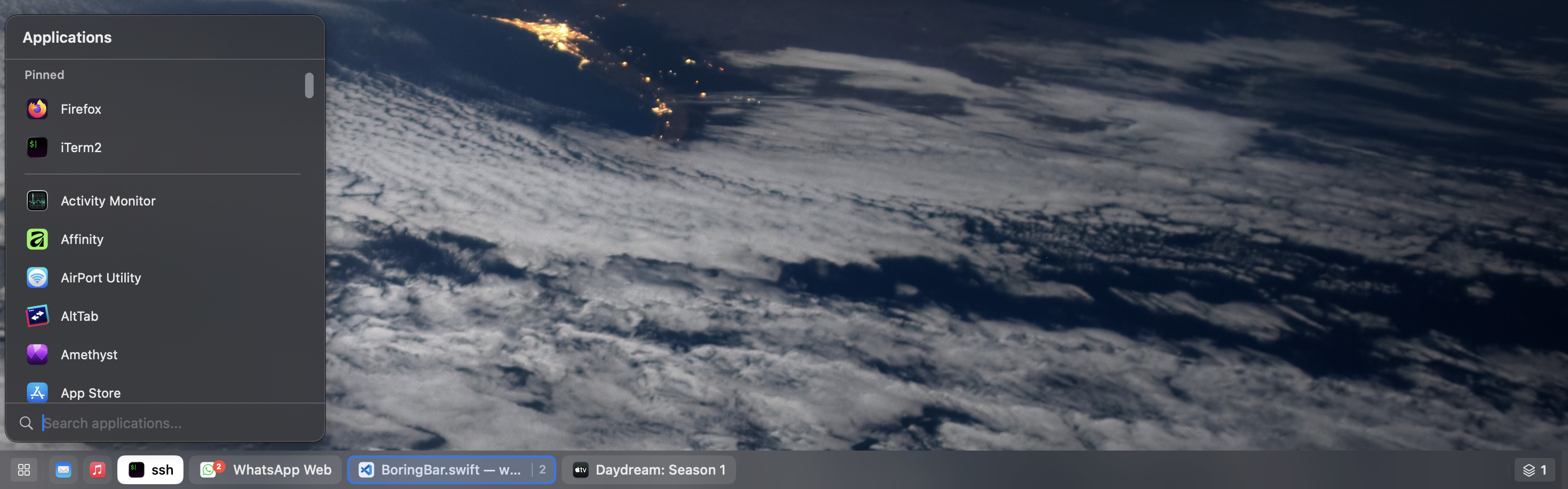
If Chest tidied up your menu bar, boringBar does the same for your windows. It keeps them organized by desktop, with previews, pinned apps and one-click desktop switching.
supports macOS 14+ (Sonoma or later)
Yes. Chest is free and open source under the MIT license.
Hold ⌘ and drag the icon to the left of the dot in your menu bar. Click the dot to see hidden icons again, or drag one back to the right of the dot to keep it visible.
Icons you don't need to see all the time but still want close by. Hold ⌘ and drag one onto the chest that appears under the dot. Click the dot and the drawer opens under it, with your hidden icons back beside it.
Two, and it uses them only to manage your menu bar:
Chest requires macOS 27 Golden Gate or later.
The team behind boringBar, a taskbar for macOS.